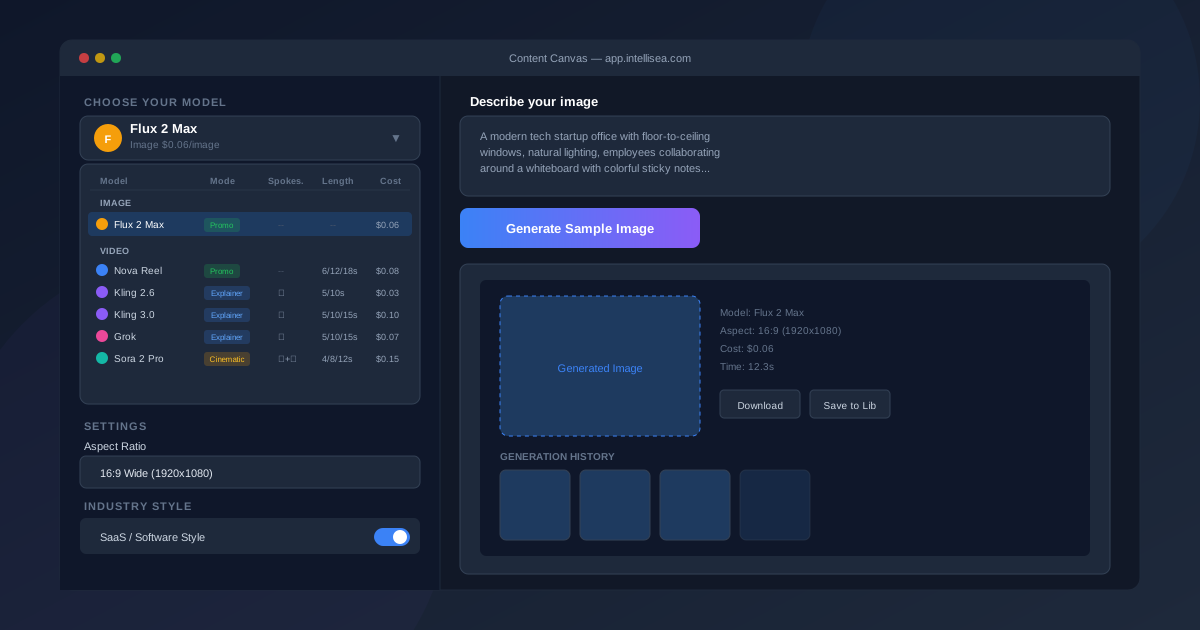
The Content Canvas is Intellisea's built-in creative studio. It lets you generate professional-quality images and videos using multiple AI models — all from a single, unified interface. This guide walks you through every option so you can create your first piece of content in minutes.
Opening the Content Canvas
From the main dashboard, click the Content Canvas button in the navigation sidebar. The canvas opens as a full-width panel with two main areas:
- Left panel (Controls) — Model selection, spokesperson picker, scene selector, lab images, industry style toggle, and generation settings
- Right panel (Preview) — Your prompt input, generation history, and a live preview area for results
Choosing Your Model
At the top of the controls panel, you'll see "Choose Your Model" with a dropdown trigger showing the currently selected model. Click it to open the model selection table.
The table organizes all available models into two groups — Image and Video — with five columns:
| Column | Description |
|---|---|
| Model | The AI model name (e.g., Flux 2 Max, Nova Reel, Kling 3.0) |
| Mode | Promo (no spokesperson), Explainer (spokesperson + audio), or Cinematic (spokesperson + scene) |
| Spokes. | Whether the model requires a spokesperson selection, a scene, or neither |
| Length | Available video durations (e.g., 5/10/15s) |
| Cost | Per-image or per-second cost |
Here are all available models:
Image Model
- Flux 2 Max — Top-tier image generation at $0.06/image. Supports multiple aspect ratios from 1:1 square to 16:9 wide, 9:16 tall, 4:3, 3:2, and 2:3.
Video Models
- Nova Reel — AI scene promo videos at $0.08/sec. Durations: 6s, 12s, 18s. Landscape, square, and portrait orientations.
- Kling 2.6 (Explainer) — AI presenter with audio at $0.032/sec. 5s or 10s clips, with multi-clip support up to 30s.
- Kling 2.6 (Cinematic) — Spokesperson + scene backdrop at $0.032/sec. Same durations as Explainer.
- Kling 3.0 (Explainer) — Next-gen presenter with native audio at $0.10/sec. 5s, 10s, or 15s clips.
- Kling 3.0 (Cinematic) — Cinematic + scene with enhanced quality at $0.10/sec. Up to 15s.
- Grok (Explainer) — Animated spokesperson with audio at $0.07/sec. 5s, 10s, or 15s.
- Grok (Cinematic) — Spokesperson + scene backdrop at $0.07/sec. Same durations.
- Sora 2 Pro (Promo) — High-quality AI scene videos at $0.15/sec. 4s, 8s, or 12s. 720p or 1080p.
- Sora 2 Pro (Cinematic) — Spokesperson + scene at $0.15/sec. Same duration and resolution options.
Click any row to select that model. The dropdown closes and the controls panel updates to show the relevant options for your selection.
Generating an Image with Flux 2 Max
Let's walk through your first image generation:
- Select Flux 2 Max from the model dropdown (it's the default)
- Choose your aspect ratio from the Settings section — options range from 1:1 Square (1024×1024) to 16:9 Wide (1920×1080)
- Write your prompt in the text area on the right. Be descriptive: "A modern tech startup office with floor-to-ceiling windows, natural lighting, employees collaborating around a whiteboard"
- Click "Generate Sample Image"
The generation typically completes in 10–30 seconds. Your result appears in the preview area, and is automatically saved to your Media Library.
Video Models at a Glance
When you select a video model, the controls panel adapts to show Duration and Resolution settings instead of Aspect Ratio. Each model has different options:
- Nova Reel — 6/12/18 seconds, landscape/square/portrait
- Kling 2.6 — 5/10/20/30 seconds (multi-scene via FFmpeg), 16:9/1:1/9:16
- Kling 3.0 — 5/10/15 seconds, 16:9/1:1/9:16
- Grok — 5/10/15 seconds, standard resolutions
- Sora 2 Pro — 4/8/12 seconds, 720p or 1080p in landscape or portrait
Spokespersons & Scenes
Models marked as Explainer or Cinematic require a spokesperson — an AI-generated presenter who appears in your video and delivers your message with synthesized speech.
When you select an Explainer or Cinematic model, a "Spokesperson" section appears in the controls. Click "Choose a Spokesperson" to open the gallery. You'll see a grid of 36+ AI presenters spanning different demographics and industries (doctors, attorneys, chefs, real estate agents, tech professionals, and more).
For Cinematic models, a "Scene" section also appears. This lets you select a cinematic backdrop — an environment or setting behind the spokesperson. Click "Choose a Scene" to browse available backdrops.
Industry Style Enhancement
Below the spokesperson section, you'll find the Industry Style toggle. When enabled (on by default), Intellisea automatically enhances your prompts with industry-specific visual cues, terminology, and aesthetic preferences based on your organization's configured industry.
For example, if your industry is "Real Estate," your image prompts are automatically enriched with professional real estate photography aesthetics — natural lighting, wide-angle composition, and property staging elements.
Using Lab Images
The "Your Lab Images" section lets you upload up to 5 reference images. These guide the AI model's output style, composition, or subject matter. Drag and drop images into the upload area or click "browse" to select files.
Lab images are optional but powerful — use them when you want the generated content to match a specific brand style, color palette, or visual reference.
Settings: Aspect Ratio, Duration & Resolution
The Settings section dynamically adapts based on your selected model:
- Image models show Aspect Ratio with options: 1:1 Square, 16:9 Wide, 9:16 Tall, 4:3 Standard, 3:2 Photo, 2:3 Portrait
- Video models show Duration and Resolution with model-specific options
The Generation Flow
Once you've configured your model, settings, and prompt:
- Click the "Generate" button (labeled "Generate Sample Image" or "Generate Sample Video" depending on your model)
- A progress indicator appears while the AI processes your request
- The completed result appears in the preview area
- Your content is automatically saved to the Media Library and tracked in the Usage Dashboard
Generation costs are tracked per-item and visible on the Usage & Costs dashboard. All generated content is stored in your organization's secure cloud storage and accessible from the Media Library.