Connecting your marketing platforms to Intellisea transforms your AI agents from general advisors into data-driven strategists. With access to your real analytics, search data, and advertising accounts, every recommendation is grounded in your actual business performance.
Why Connect Integrations?
Without integrations, your AI agents rely on publicly available data and your conversation inputs. With integrations connected, they can:
- Pull real-time traffic data from Google Analytics to identify top-performing pages and conversion opportunities
- Analyze your search rankings and click-through rates from Search Console for actionable SEO insights
- Review your ad campaign performance from Google Ads to optimize spend and targeting
- Manage tracking tags and pixels through Tag Manager without touching code
- Draft, publish, and analyze LinkedIn content and ad campaigns directly from the platform
- Audit and optimize your WordPress website content for SEO and conversions
The Integrations Page
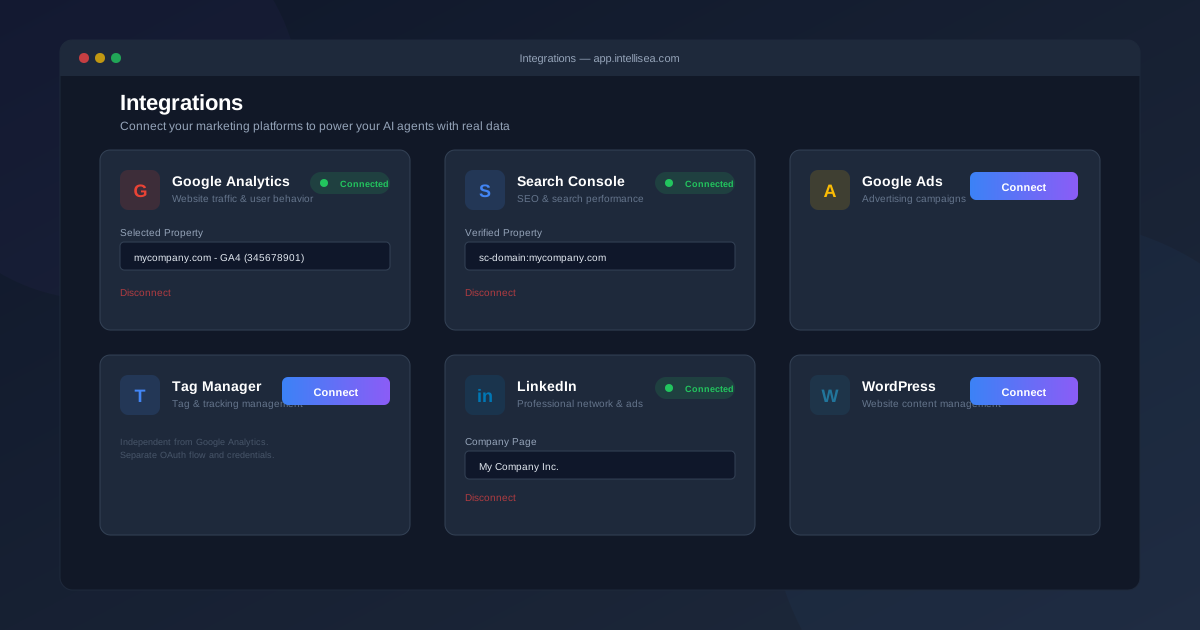
Navigate to Integrations from the main sidebar. You'll see a card-based layout with each available platform. Each card shows:
- The platform icon and name
- A brief description of what data it provides
- A Connect button (or green "Connected" badge if already linked)
- After connection, a property selector to choose which account/property to use
Google Analytics (GA4)
Google Analytics provides website traffic, user behavior, and conversion data to your AI agents.
- Click "Connect" on the Google Analytics card
- You'll be redirected to Google's OAuth consent screen. Sign in with the Google account that has access to your GA4 property.
- Grant Intellisea read-only access to your Analytics data
- After authorization, you'll return to Intellisea. Select which GA4 property to use from the dropdown.
Once connected, the Analytics Director agent can answer questions like "What are my top traffic sources this month?" or "Which landing pages have the highest bounce rate?" using your actual data.
Google Search Console
Search Console integration gives your SEO Director real search performance data.
- Click "Connect" on the Search Console card
- Authorize with your Google account
- Select your verified property (domain or URL prefix)
With this connected, the SEO Director can identify your actual ranking keywords, track position changes, find pages with high impressions but low clicks, and prioritize SEO improvements based on real data rather than estimates.
Google Ads
Connect Google Ads to let the Paid Ads Director analyze and optimize your advertising campaigns.
- Click "Connect" on the Google Ads card
- Authorize with your Google Ads account
- Select the Ads account (CID) you want to manage
Once connected, your Paid Ads Director can review campaign performance, suggest bid adjustments, identify wasted spend, and recommend new keyword opportunities — all backed by your actual campaign data.
Google Tag Manager
Google Tag Manager is connected through a separate, independent OAuth flow from GA4. This means you can connect or disconnect GTM without affecting your Google Analytics connection.
- Click "Connect" on the Tag Manager card
- Authorize GTM-specific scopes (read, edit, publish access)
- Select your GTM account and container
With GTM connected, your agents can list existing tags, create new tracking tags, set up triggers, manage variables, and even publish container versions — all through conversation.
The LinkedIn integration connects your professional network and advertising platform.
- Click "Connect" on the LinkedIn card
- You'll be redirected to LinkedIn's OAuth consent screen
- Grant access to your LinkedIn profile and pages
Once connected, the LinkedIn Director and its four sub-agents (Strategy, Content, Ads, Analytics) can draft posts, schedule content, manage ad campaigns, and pull performance analytics from your LinkedIn Company Page.
WordPress
Connect your WordPress site to let agents audit content, suggest SEO improvements, and manage posts.
- Click "Connect" on the WordPress card
- Enter your WordPress site URL and authenticate
The Website Director and Content Director can then analyze your existing pages, suggest title and meta description improvements, and recommend content updates for better search visibility.
Managing & Disconnecting
Each connected integration shows a green "Connected" badge. To disconnect:
- Navigate to the Integrations page
- Find the integration card you want to disconnect
- Click the "Disconnect" or "Revoke" button
- Confirm the action
Disconnecting an integration immediately revokes Intellisea's access tokens. Your historical data remains in your account, but agents can no longer pull fresh data from that platform.