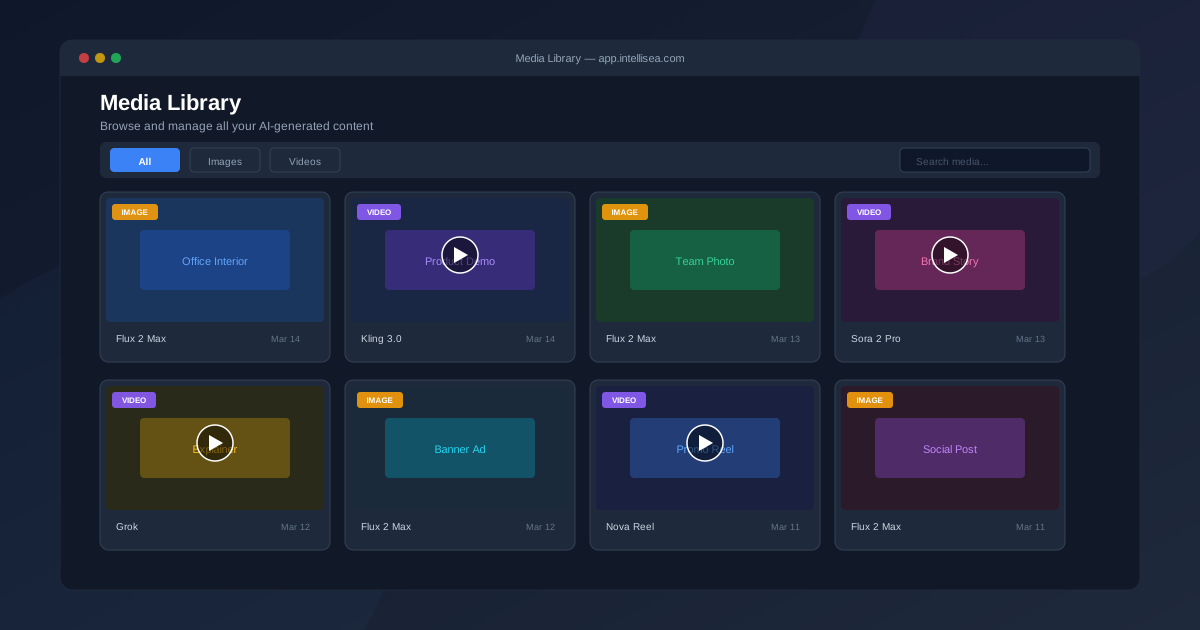
Every image and video you generate in the Content Canvas is automatically saved to your Media Library. This central hub lets you browse, preview, download, and manage all your AI-generated content in one place.
Accessing the Media Library
Click "Media" in the main navigation sidebar to open the Media Library. The page displays all your organization's generated content in a responsive grid layout, with the most recent items shown first.
Browsing Your Content
The Media Library presents your content as a visual grid of thumbnails. Each item shows:
- Thumbnail preview — A scaled-down version of the image, or the first frame for videos
- Content type badge — An icon indicating whether it's an image or video
- Model label — Which AI model generated the content (e.g., Flux 2 Max, Kling 3.0, Sora 2 Pro)
- Creation date — When the content was generated
Items are sorted by creation date with the newest content appearing first. The grid is responsive — it adjusts from 4 columns on desktop to 2 columns on tablet and 1 column on mobile.
Filtering & Searching
At the top of the Media Library, you'll find filter controls to narrow down your content:
- Type filter — Show all content, images only, or videos only
- Model filter — Filter by the specific AI model used (Flux, Nova Reel, Kling, Grok, Sora)
- Date range — View content from a specific time period
These filters work together, so you can quickly find something like "all Kling 3.0 videos from this week."
Previewing Media
Click any thumbnail to open a full-size preview. The preview modal shows:
- The full-resolution image or video player with playback controls
- Generation details — The prompt used, model selected, settings (aspect ratio, duration, resolution), and cost
- Spokesperson info (for Explainer/Cinematic videos) — Which presenter was used
- Action buttons — Download, delete, and copy URL options
For videos, the preview includes a full video player with play/pause, volume control, and fullscreen options. Videos are served through CloudFront CDN for fast, global delivery.
Downloading & Sharing
To download any piece of content:
- Click the thumbnail to open the preview
- Click the Download button
- The file downloads in its original format and resolution (PNG for images, MP4 for videos)
You can also copy the CDN URL directly to use in external applications, social media posts, or embed in web pages. Content is served from app.intellisea.com/_content/ through CloudFront edge locations for low-latency global access.
Deleting Content
To remove content from your library:
- Open the preview for the item you want to delete
- Click the Delete button
- Confirm the deletion
Deleted content is permanently removed from your organization's cloud storage. This action cannot be undone, so make sure you've downloaded anything you want to keep before deleting.
How Storage Works
All generated content is stored in your organization's dedicated area within the intellisea-tenant-content-assets S3 bucket, organized by media type:
- Images are stored under
org-{id}/media/images/ - Videos are stored under
org-{id}/media/videos/
Content is delivered through the CloudFront CDN using Origin Access Control (OAC) for secure, signed requests. This means your content loads fast from edge locations worldwide while remaining securely tied to your organization.
Every piece of generated content also contributes to your usage tracking — you can see exactly how much each generation costs on the Data Management page.