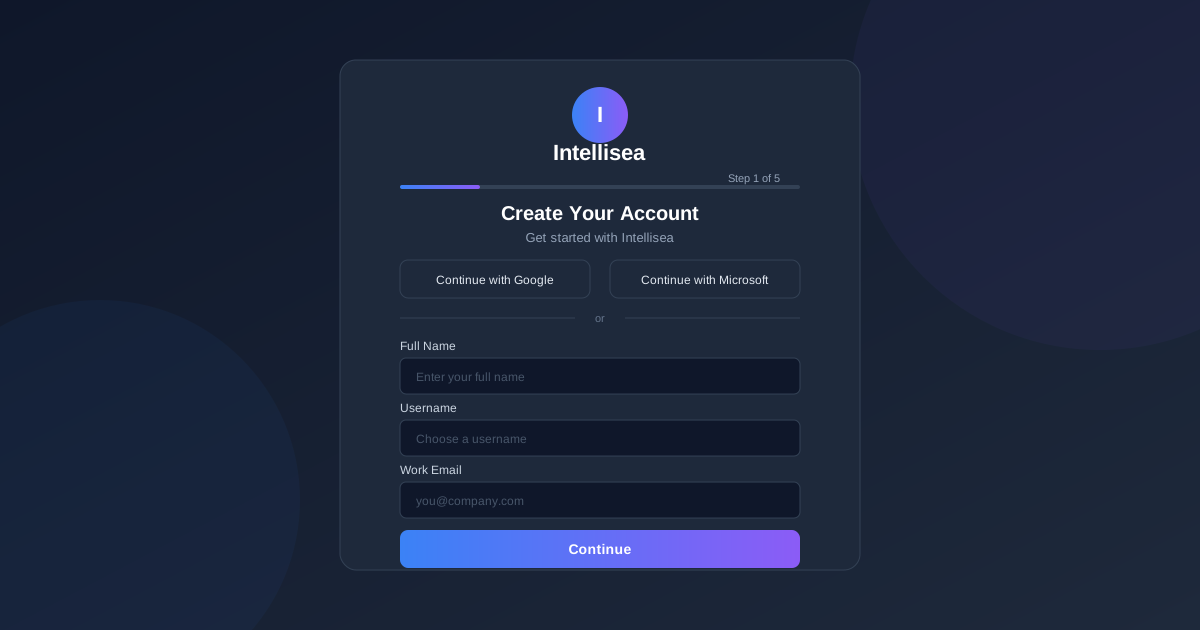
Getting started with Intellisea takes less than five minutes. This guide walks you through every step of the signup process — from creating your account to setting up your organization's workspace and inviting your first team members. Every screenshot and instruction mirrors exactly what you'll see in the app.
Overview of the Signup Flow
Intellisea uses a 5-step guided onboarding process with a visual progress bar at the top of each screen. Here's what you'll complete:
- Create Your Account — Enter your name, username, email, and password (or use Google/Microsoft SSO)
- Verify Your Email — Enter the 6-digit code sent to your inbox
- Set Up Your Workspace — Add your company name, website, industry, and service area
- Connect Data Sources — Optionally link Google Analytics, Search Console, Google Ads, and more
- Welcome — You're ready to start using the platform
If you've been invited to join an existing organization, you'll follow a shorter flow: create your personal account, verify your email, and land directly in the team workspace.
Step 1: Create Your Account
Navigate to app.intellisea.com/signup. You'll see two options:
- Create a New Organization — Choose this if you're the first person from your company. You'll become the administrator.
- Join an Existing Organization — Choose this if a colleague already set up Intellisea and invited you.
Selecting "Create a New Organization" takes you to the account creation form. You can sign up two ways:
Or fill out the manual form:
- Full Name — Your display name throughout the platform
- Username — Letters, numbers, and underscores only. This becomes your unique identifier.
- Work Email — Use your company email (e.g., you@company.com)
- Password — Minimum 8 characters, at least 1 uppercase letter and 1 number. A real-time strength meter shows you how secure your password is.
Click Continue to proceed. Your account is created securely through AWS Cognito, the same identity service trusted by thousands of enterprise applications.
Step 2: Verify Your Email
A 6-digit verification code is sent to the email address you provided. Check your inbox (and spam folder) for an email from Intellisea.
On the verification screen, you'll see six individual input boxes. Type or paste your code — each digit auto-advances to the next box. Once all six digits are entered, the Verify button becomes active.
- Didn't receive the code? Click "Resend code" to get a new one. There's a short cooldown timer between resends.
- Entered the wrong email? Click "Go back" to return to Step 1 and correct it.
Step 3: Set Up Your Workspace
This is where you configure your organization. Fill in the following:
- Company Name — Your business name as it should appear across the platform
- Website URL — Your primary website (e.g., https://yourcompany.com). This is used by AI agents for SEO analysis, competitor research, and content recommendations.
- Industry — Select from options like Marketing Agency, E-commerce, SaaS/Software, Healthcare, Finance, Real Estate, Education, Manufacturing, and more. Some industries reveal a Specialization dropdown for more precise categorization.
- Service Area — Choose your geographic reach:
- Global — Worldwide operations
- National — Country-wide coverage
- Regional — Multi-state or regional
- Local — City or metro-level targeting
The service area you choose influences how AI agents approach SEO keywords, Google Business Profile recommendations, and advertising targeting.
Step 4: Connect Your Data Sources
This step is optional but recommended. Connecting your data sources gives the AI agents real-time context about your business performance.
You'll see integration cards for:
- Google Analytics — Website traffic and user behavior data
- Google Search Console — SEO and search performance metrics
- Google Ads — Advertising campaign data
- Google Tag Manager — Tag and tracking management
- LinkedIn — Professional network and ad platform
- WordPress — Website content management
Click the connect button for any service to initiate an OAuth authorization flow. You'll be redirected to the provider (e.g., Google) to grant Intellisea read access to your data. Once authorized, a green "Connected" badge appears on the card.
Step 5: Welcome — You're All Set
The final screen confirms your account and workspace are ready. You'll see three quick-action cards:
- Ask your first question — Jump straight into the AI chat to start interacting with your marketing team
- Invite team members — Add colleagues to your organization from the Settings page
- Connect more data — Link additional integrations you may have skipped
Click "Go to Dashboard" to enter the main application.
Managing Your Profile
Once inside the app, you can manage your profile from the Settings page. Your profile has two data sources:
- Identity fields (from Cognito, read-only) — Your Name, Email, and Username are managed by your identity provider. These appear with a lock icon and cannot be edited directly in the app.
- Profile fields (editable) — Company, Phone, Industry, and Timezone can be updated at any time. Changes save automatically.
Inviting Team Members
As an organization administrator, you can invite colleagues from Settings → Team Members. Invited users receive an email with a link to join your organization. They'll go through the shortened signup flow (account creation + email verification) and land directly in your shared workspace.
All team members share the same organization context — the same integrations, the same AI agent memory, and the same content library. Individual usage is tracked per user on the Usage & Costs dashboard.